MCP Server
Connect any MCP-compatible client to your Digital Twin using your server URL — via OAuth when the client supports it, or with a personal access token.
Use this when you're wiring up a custom agent, SDK, or tool that speaks the Model Context Protocol. Cursor and Claude Desktop have their own setup flows; this page is for everything else.
Setup
Open My Twin → Data & Integrations → Apps, select MCP Server under Use Twin in External Apps, then follow the steps on that page:
- Copy the MCP URL for your environment (it ends in
/niobe/mcp). - Authenticate using whichever method your client supports:
- OAuth (preferred) — If the client supports MCP OAuth, paste the MCP URL and complete the browser consent flow. No Personal Access Token is required.
- Personal Access Token — Create a PAT and send it as a Bearer token in the
Authorizationheader.
- Configure your MCP client with that URL (and header, if using a PAT).
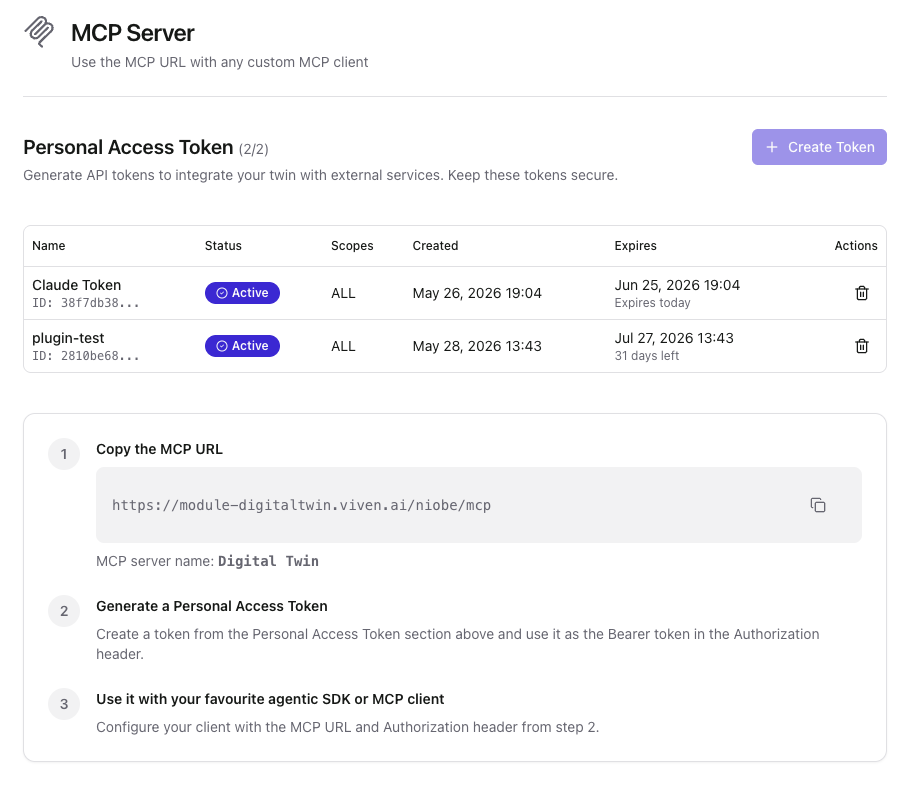
Server name
When your client asks for a server name, use Digital Twin (as shown on the setup page).
For developer-oriented details on authentication, tools, and resources, see the MCP Reference.