Claude Desktop
Connect Claude Desktop to your Digital Twin so organizational context travels with you outside the Viven app.
Before you start
- Open My Twin → Data & Integrations → Apps and select Claude Desktop under Use Twin in External Apps. See the overview if you need to find the Apps page.
- Install Claude Desktop if you haven't already.
Recommended: One-click extension install
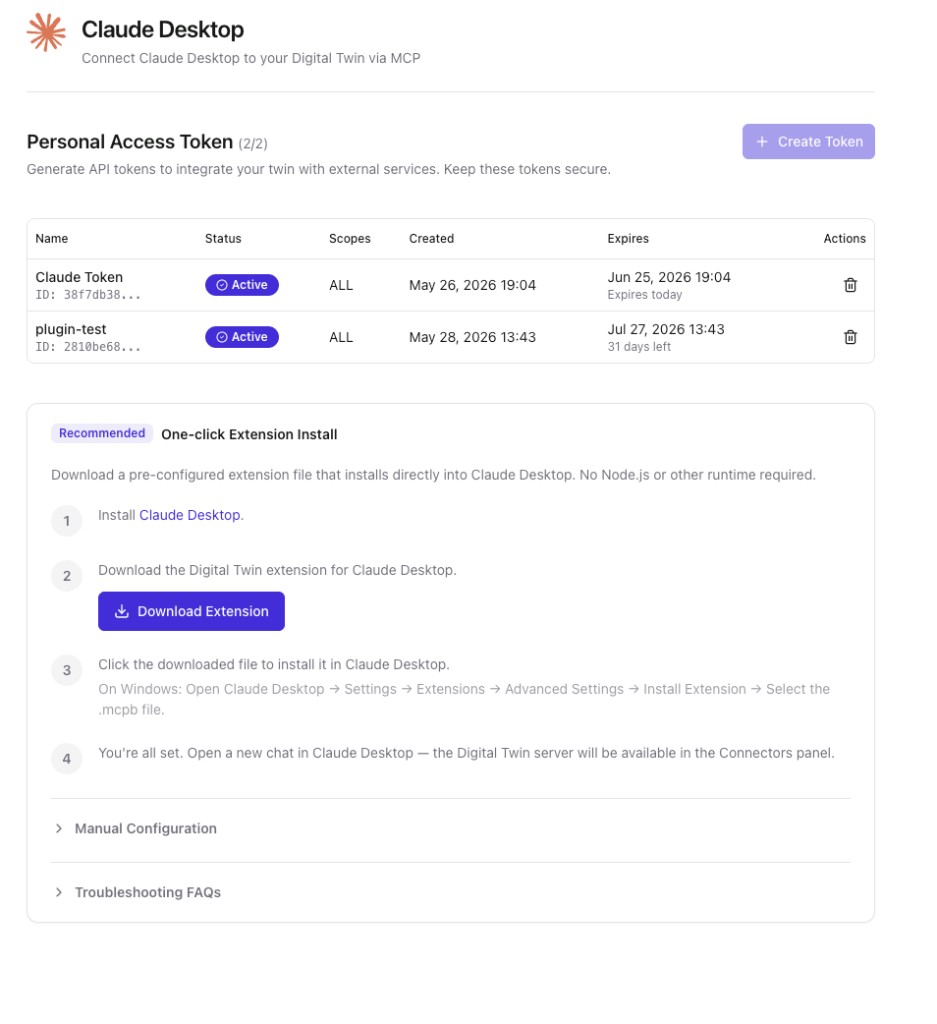
From the Claude Desktop setup page in Apps:
- Create a Personal Access Token if you don't have one yet (use + Create Token).
- Under One-click Extension Install, download the Digital Twin extension (
.mcpbfile). - In Claude Desktop, open Settings → Extensions, drag the file in, and confirm the install.
- Your Twin appears in the Connectors panel and is ready to use.
Manual configuration
If you prefer to configure by hand, expand Manual Configuration on the same setup page for the JSON snippet and server details.
Query your Digital Twin from Claude Desktop — pull answers from your emails, meetings, Slack, and documents without leaving the conversation.
Digital Twin connects to Claude through the Model Context Protocol (MCP). This integration works in Claude Desktop only — not in the claude.ai web app or Claude mobile apps. Install Claude Desktop before you begin.
What This Does
Once connected, Claude can call your Digital Twin MCP server as a Connector. Ask Claude questions about your work — action items from last week's meetings, what a colleague decided on a project, or who in your org knows about a topic — and Claude routes those queries to your Twin using the ask and search_twins tools.
Your Twin answers from the knowledge sources you have connected: Slack, email, meetings, documents, and more.
Before You Start
- Digital Twin Anywhere must be enabled for your organization. If you don't see Twin Settings → Use Digital Twin Anywhere, ask your admin to enable it.
- Open Twin Settings → Use Digital Twin Anywhere in the Digital Twin app. This page shows your organization's MCP URL, lets you create a Personal Access Token (PAT), and provides the one-click extension download.
- Install Claude Desktop on your Mac or Windows machine.
Recommended: One-Click Extension Install (MCPB)
The fastest way to connect is to download a pre-configured .mcpb extension file from Digital Twin. No Node.js or manual config editing required.
- Install Claude Desktop if you haven't already.
- In Digital Twin, go to Twin Settings → Use Digital Twin Anywhere.
- Click Download Extension. This downloads a
Digital-Twin.mcpbfile with your MCP URL and a fresh Personal Access Token baked in. - Install the extension in Claude Desktop:
- Mac: Double-click the downloaded
.mcpbfile. - Windows: Don't double-click the file — Windows may not know which app to open it with. Instead, open Claude Desktop → Settings → Extensions → Advanced Settings → Install Extension → select the
.mcpbfile.
- Mac: Double-click the downloaded
- Start a new chat in Claude Desktop. Click the + icon, open Connectors, and confirm Digital Twin appears. You're connected.
Alternative: Manual Configuration
Use manual setup if you prefer to manage your own config file, need to customize the connection, or cannot use the extension download.
Manual configuration uses npx to run the MCP bridge. Node.js must be installed on your computer — Claude Desktop uses it to start the server. To verify, open a terminal and run node -v; you should see a version number. Skip this requirement if you use the one-click extension install above.
- Install Claude Desktop and Node.js.
- In Digital Twin, go to Twin Settings → Use Digital Twin Anywhere.
- Copy your MCP URL and create a Personal Access Token (PAT). Store the token somewhere safe — you won't be able to view it again after creation.
- In Claude Desktop, go to Settings → Developer → Edit Config to open
claude_desktop_config.json.- Mac:
~/Library/Application Support/Claude/claude_desktop_config.json - Windows:
%APPDATA%\Claude\claude_desktop_config.json
- Mac:
- Add the Digital Twin server to the
mcpServerssection. Replace<YOUR_MCP_URL>with your MCP URL and<YOUR-PAT>with your Personal Access Token:
{
  "mcpServers": {
    "Digital Twin": {
      "command": "npx",
      "args": [
        "-y",
        "mcp-remote",
        "<YOUR_MCP_URL>",
        "--header",
        "Authorization: Bearer <YOUR-PAT>"
      ]
    }
  }
}
- Restart Claude Desktop completely (on Mac, use Cmd+Q to quit, then reopen).
- Start a new chat. Click the + icon, open Connectors, and confirm Digital Twin is listed. Enable it for the conversation.
Using Your Twin in Claude
With the Connector enabled, ask Claude naturally — it decides when to call Digital Twin tools. Try prompts like:
What were my action items from last week's meetings?
Who on our team knows the most about Kubernetes?
Summarize what we decided about the Q3 launch in Slack this month.
Claude calls ask for knowledge queries and search_twins when it needs to find a colleague's twin or a topic expert. Responses include citations you can follow up on.
Some questions take longer than a minute to answer — especially in Claude's extended thinking mode. The Digital Twin MCP server handles this automatically by polling in the background. Claude may make several tool calls before the full answer arrives; this is expected behavior.
Troubleshooting
Expand Troubleshooting FAQs on the Claude Desktop setup page in Apps for common connection issues.
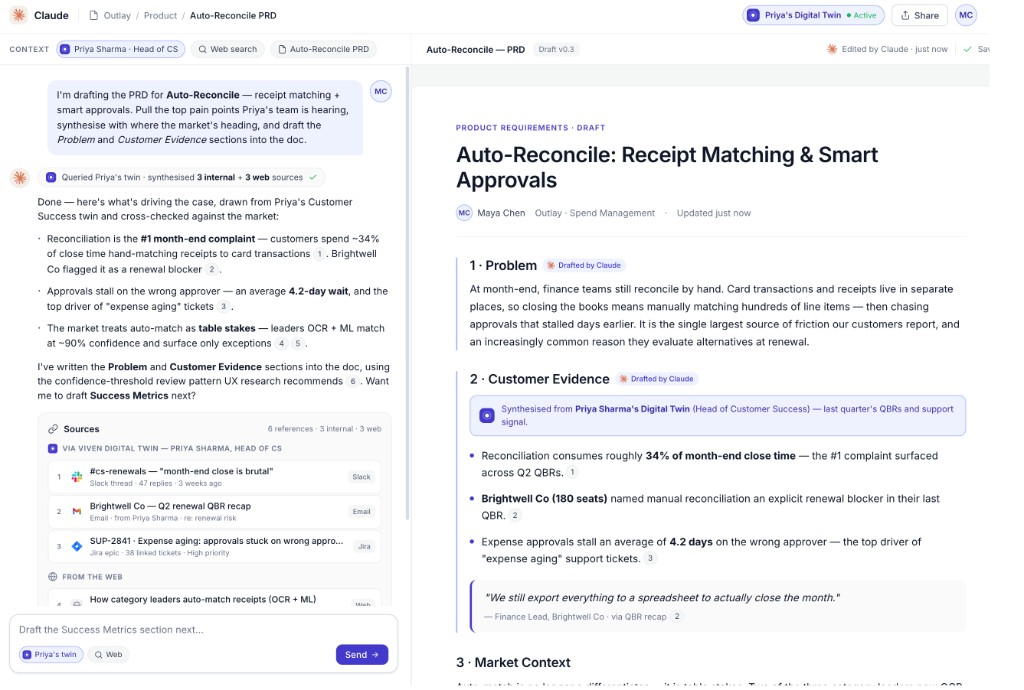
Use your Twin while you write
Once connected, query your own Twin or a colleague's Twin from Claude to pull customer evidence, internal context, and cited sources into documents you're drafting.