Creating a Slackbot
Put an Expert Twin in a Slack channel so your team can get answers in the flow of work, without leaving the conversation.
What This Does
Linking an Expert Twin to a Slack channel turns that Expert into a channel-aware assistant. Once published, the Digital Twin Slack app can respond to questions in that channel on behalf of the Expert, either automatically when a message looks like a question the Expert can answer, or when someone explicitly invokes it.
This is useful when an Expert is tied to a team workflow (product support, onboarding, account management, internal tooling) and you want answers to show up where people already work.
For the full Expert creation flow (knowledge sources, behavioral cues, access control), see Creating Custom Experts. This page focuses on the Slack setup and how responses work once a channel is linked.
Before You Start
- You need an Expert Twin: create one from scratch or start from a template. See Creating Custom Experts.
- You need admin access to the Expert: only admins can link channels and publish changes.
- Slack must be connected for your organization: if you don't see the Publish to Slack section, ask your admin to confirm the Digital Twin Slack integration is set up.
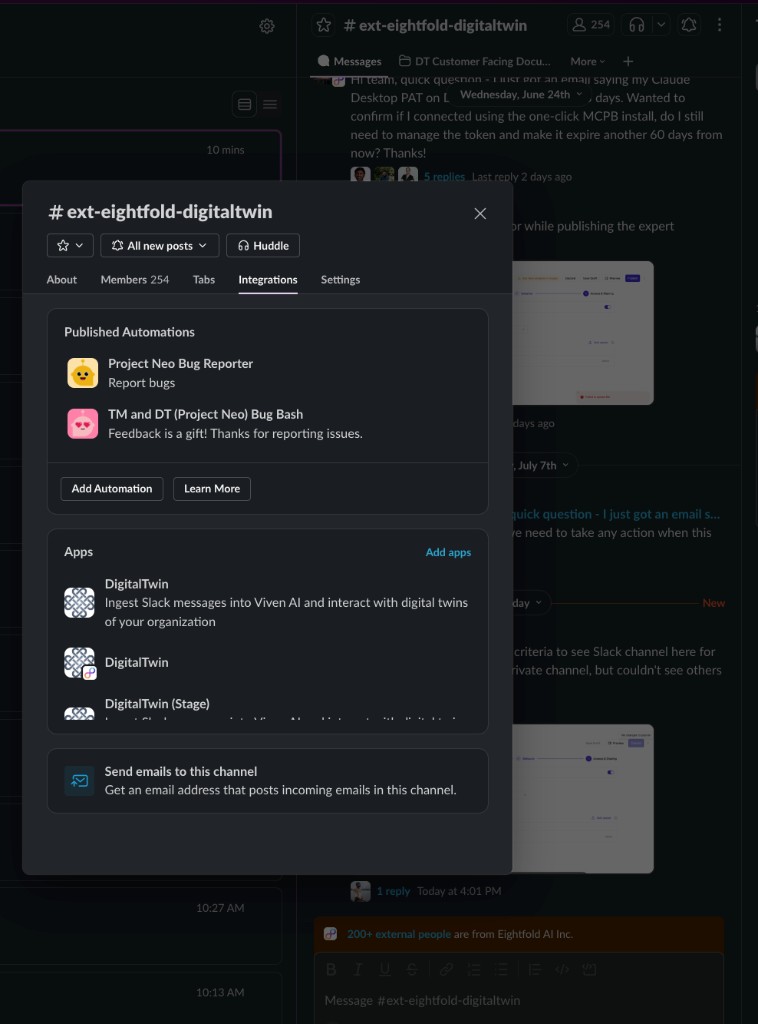
Before linking an Expert, make sure the DigitalTwin Slack app is added to the channel. Open the channel details, go to the Integrations tab, and under Apps click Add apps if DigitalTwin is not already listed.
Link an Expert to a Slack Channel
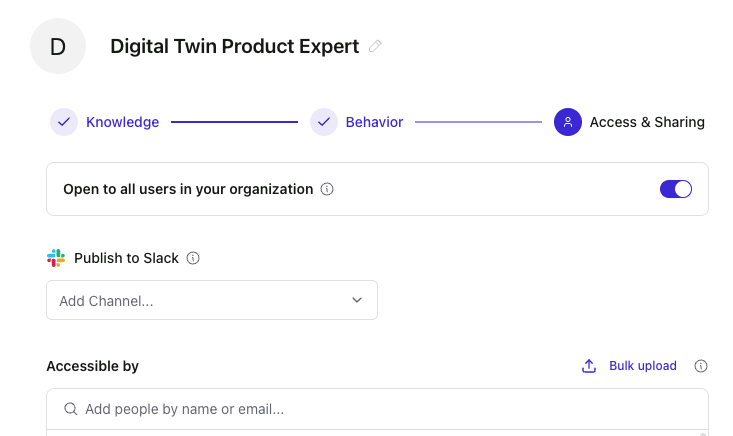
Open the Expert you want to publish. In the setup stepper, go to the third step: Access & Sharing.
Under Publish to Slack, click Add Channel... and pick the channel from the dropdown. The Digital Twin app joins the channel when the link is saved and published.
Linked channels appear as chips below the picker. Click the × on a chip to unlink a channel.
You can link an Expert to more than one channel. Multiple Experts can also be linked to the same channel: the Digital Twin app routes each question to the most relevant Expert based on the message content.
When you're done, click Publish in the top-right. Channel links (and other Access & Sharing changes) stay in draft until you publish.
How It Works in Slack
Once an Expert is linked and published, there are two ways it shows up in the channel.
Auto-responder (proactive)
When someone posts a message in a linked channel without @mentioning Digital Twin, the app evaluates whether the message is a question the linked Expert(s) can answer well.
If it is, the Expert responds in the thread on the original message, prefixed with the Expert's name (for example, 🤖 Digital Twin Product Expert's Twin says:). The response includes citations and feedback controls. While the Expert is thinking, the app adds an 👀 reaction to the original message.
The auto-responder does not fire on every message. It skips messages that don't look like questions and ignores channels where your admin has disabled auto-responder behavior.
Explicit @mention
Users can also invoke the Expert directly by @mentioning DigitalTwin in the channel with their question. The app routes the question to the relevant linked Expert(s) and posts the response in-thread. While processing, it reacts with an 👀 emoji on the original message.
If multiple Experts are linked to the same channel, routing is automatic: you don't need to specify which Expert to use.
Access Still Applies
Linking a channel does not bypass Expert access rules.
- If the Expert is open to all users in your organization, anyone in the channel can trigger and see responses.
- If access is restricted to a specific list, only people on the Accessible by list can use the Expert, including in Slack.
Configure org-wide access and the user list on the same Access & Sharing step. See Access & Sharing for details on roles and permissions.
Tips
- Pick channels where the Expert's knowledge fits. A product Expert belongs in
#product-help; an onboarding Expert belongs in#new-hires. - Publish after changes. Edits to linked channels stay in draft until you click Publish.
- Test with an @mention first if you want a guaranteed response, then watch for auto-responder behavior on natural questions.
Frequently Asked Questions
Yes. Before linking an Expert (or expecting responses), add the DigitalTwin app to the channel: open channel details → Integrations → Apps → Add apps, then search for DigitalTwin if it is not already listed.
Yes. You can add the Digital Twin app to private channels the same way you add it to public channels. Once the app is in the channel and an Expert is linked and published, it can respond there.
Related
- Creating Custom Experts: build and configure the Expert
- Access & Sharing: org access, Slack linking, and user permissions
- Slack: using your personal Twin inside Slack