Access & Sharing
Decide who can use your Expert, who can admin it, and where it shows up.
The Access & Sharing Step
This is the third and final step in the Expert creation flow (Access & Sharing in the stepper). It controls:
- Who in your org can find and use the Expert.
- Who can edit, manage, and admin it.
- Whether the Expert responds inside Slack channels.
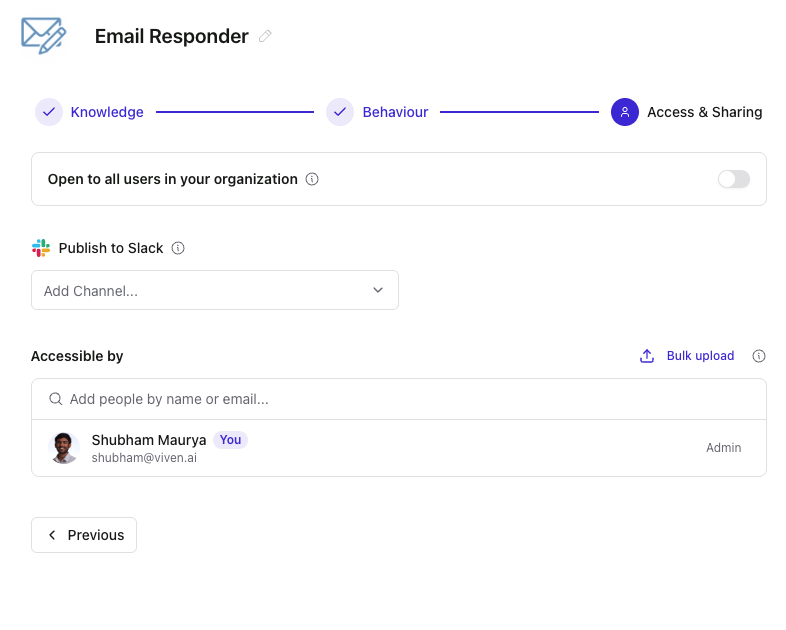
Open to All Users in Your Organization
A toggle at the top of the page. When ON, anyone in your organization can find and chat with the Expert from the Experts page.
When OFF, only people on the Accessible by list (below) can use it.
The toggle controls access, not permissions. People who get in via the org-wide toggle still come in as read-only users — they can chat with the Expert but can't manage its configuration.
Org-wide sharing may not be enabled for your organization. If the toggle is unavailable, check with your admin.
Publish to Slack
Link the Expert to one or more Slack channels. Once linked, the Expert is reachable in those channels in the flow of work.
To add a channel, click Add Channel... and pick from the dropdown. Linked channels show as pinned chips below the picker. Click the × on a chip to unlink.
How users invoke an Expert in Slack
There are two ways the Expert shows up in a linked Slack channel:
Proactive responses Digital Twin scans every message in linked channels. If it can generate a high-quality response, it sends an ephemeral message — visible only to the person who sent the original message. They can then choose whether to share it with the whole channel. This happens automatically, without anyone needing to tag or mention anything.
Explicit @mention Users can also invoke the Expert directly by @mentioning DigitalTwin in the channel with their question. The Digital Twin app routes the question to the Expert(s) linked to that channel and posts the response in-thread. While processing, it reacts with an "eyes" emoji on the original message.
If multiple Experts are linked to the same channel, the Digital Twin app handles routing automatically.
Slack is the first in-flow-of-work surface for Experts. More surfaces are on the way.
Accessible By
The list of people who can use the Expert, with their role.
Roles
- Admin — can edit the Expert's configuration, manage sources and contributors, and add other admins.
- Contributor — invited from the Knowledge step. Contributes Twin knowledge but cannot edit prompt instructions.
- User — read-only access. Can chat with the Expert but can't change anything.
Use Add people by name or email... to grant access. Each person shows their role (Admin, Contributor, or User). To remove someone, use the remove action on their row.
Bulk Upload
For larger Experts where adding people one by one is tedious, click Bulk upload to add a batch of users at once.
Save Draft, Preview, and Publish
These three controls are at the top-right of every step, not just this one.
- Save Draft — saves your changes without making them live. Useful when you're mid-edit or want to come back later.
- Preview — opens a side-by-side preview of the Expert using the saved draft.
- Publish — makes the current configuration live. Other users see the latest published version, not your in-progress draft.
Until you click Publish for the first time, the Expert isn't usable by others on the access list.
After You Publish
The Expert appears in the Experts page Gallery (and My Experts for you), and in any Slack channels you linked. Anyone with access can start chatting with it immediately.
You can come back and edit any step at any time. Changes stay in draft until you publish again.