Knowledge Sources Setup
Tell your Expert what it knows — invite contributors' Twins, connect sources, and upload files.
The Knowledge Step
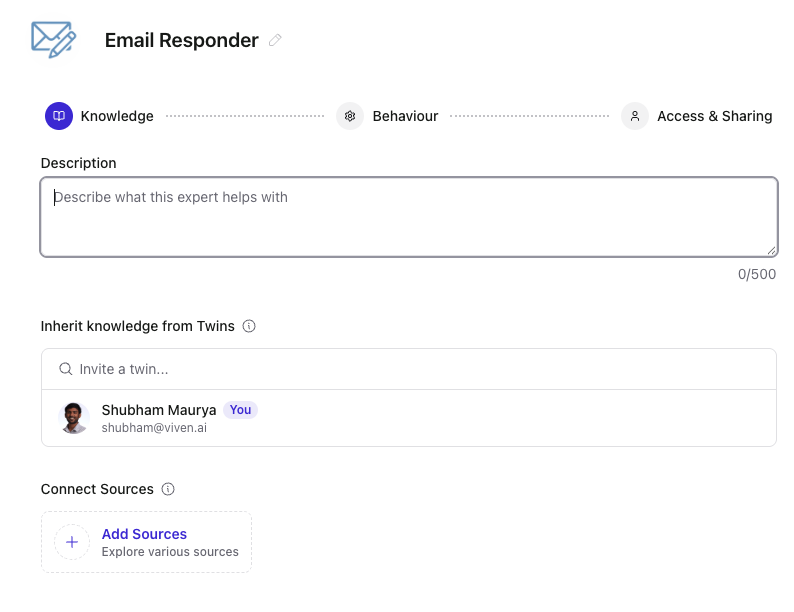
This is the first step in the Expert creation flow (Knowledge in the stepper at the top). It's where you define the knowledge universe the Expert can pull from.
The page has three sections:
- Description — a short summary of what the Expert is for (up to 500 characters).
- Inherit knowledge from Twins — invite people whose Twin knowledge feeds the Expert.
- Connect Sources — optionally attach specific documents, folders, channels, or URLs directly to the Expert.
Description
A short statement of what the Expert is for. Keep it concrete — "central knowledgebase for the AcmeCorp pilot rollout" is more useful than "helps with customer accounts."
The Description isn't just for display. It feeds the auto-generation features on the Behavioral Cues step — both Generate Instructions and Generate Questions use it as input. A clear description means better starter prompts and conversation starters.
The field caps at 500 characters.
Inherit Knowledge from Twins
This is the primary way to bring knowledge into an Expert — by connecting it to the people who hold that knowledge.
Use Invite a twin... to find a person by name or email, then add them. Invited contributors appear in a list below the search field.
What happens when you invite someone
When you invite a person, they receive an email notification with a link to review the Expert. They need to accept the invitation before their knowledge starts flowing in — and when they accept, they choose which Persona to link.
This means the Expert's knowledge is dynamic — as a contributor's Twin grows (new meetings, new documents, new training), the Expert automatically benefits. You don't need to re-add sources manually when their knowledge changes.
Privacy is enforced on the asker's side
What actually surfaces in any given answer depends on the asker's access level to each contributor — not just the contributor's persona choice. Someone asking the Expert a question will only see content they're entitled to see. You can invite contributors freely; the platform enforces the boundary automatically.
See Personas for a full explanation of how this works.
Connect Sources
Connect Sources is a supplementary mechanism for grounding the Expert in specific, curated knowledge — on top of (not instead of) the contributor Twins.
Use it when you want to anchor the Expert to a particular document, folder, channel, or repository — things like a canonical playbook, a Slack channel for a specific account, or a reference database.
Click Add Sources to open the picker:
| Option | What it does |
|---|---|
| Add your sources | Point the Expert at specific items in your connected systems — documents, folders, Slack channels, Drive folders, GitHub repos, and more. |
| Upload file | Upload a file from your computer directly into the Expert. |
| Add URL | Attach a public web page as a source. |
Connect Sources is additive — it expands what the Expert can retrieve from alongside contributors' inherited Twin knowledge. The two mechanisms work together; it's not an either-or choice.
Templates and pre-attached sources
Many Expert templates ship with a starter PDF already attached. You'll see it listed under Connect Sources when you open the template — keep it, remove it, or replace it with your own material.
A Few Patterns That Work
Account or customer Expert
- Invite the 2–3 people working the account as contributors.
- Connect the account's Slack channel as a source.
- Add the SOW, contract, and any key reference docs.
Workflow Expert (e.g., RFP responses)
- Invite the 1–2 people who've authored the most past RFPs.
- Attach a folder of completed RFPs and your gold-standard template.
Domain Expert (e.g., SOPs)
- Invite one or two domain owners as contributors.
- Connect the relevant Drive folder or Confluence space.