Setting Up Knowledge for Your Twin
Your Digital Twin learns from the apps and data sources you connect to it. The more context it has — your emails, meetings, documents, messages — the more accurately it can answer questions, surface relevant information, and take actions on your behalf.
This guide walks you through how knowledge sources work and how to make sure your Twin is set up the way you want.
How It Works: The Apps Page
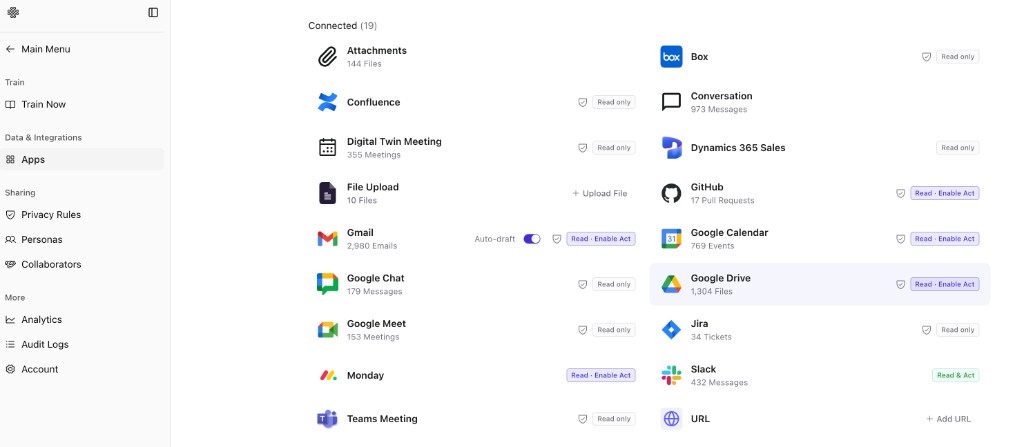
Open Data & Integrations → Apps from your Twin's sidebar. This is where every connected knowledge source lives.
The Connected list shows each app with sync counts (files, emails, meetings, and so on) and a status badge:
- Read only — your Twin can search and recall synced content; you cannot act in that app.
- Read · Enable Act — read access is on; you can grant personal Act permissions when you're ready.
- Read & Act — you have authorized both knowledge sync and actions (for example, Slack).
Admin-Preconfigured Sources
Many sources will already be connected and syncing when you first sign in — your admin sets these up at the organization level.
These typically include shared enterprise systems like Confluence, Box, meeting recordings, shared drives, CRM data, and other org-wide content. You don't need to do anything to enable them. They'll show a Read only badge, meaning your Twin can draw on that knowledge when answering your questions.
Note: Because these sources are managed by your organization, you won't be able to disconnect them. Your admin controls their scope and sync settings.
Sources You Enable Yourself
Some sources require your personal authorization before your Twin can access them. This is typically because they hold data tied to your individual account, and accessing it requires your permission via OAuth or a personal API token.
These sources will show a Connect button when you land on the Apps page. Common examples include:
- Slack — your messages and channels
- Monday.com — your boards and tasks
- GitHub — your pull requests and code activity
To enable one, select the app and follow the sign-in or authorization flow. Once connected, your Twin will begin syncing and indexing that content so it can reference it in conversations.
Enabling Write Actions
Reading your data is just the first layer. Some apps also support Actions — meaning your Twin can do things on your behalf, not just recall information.
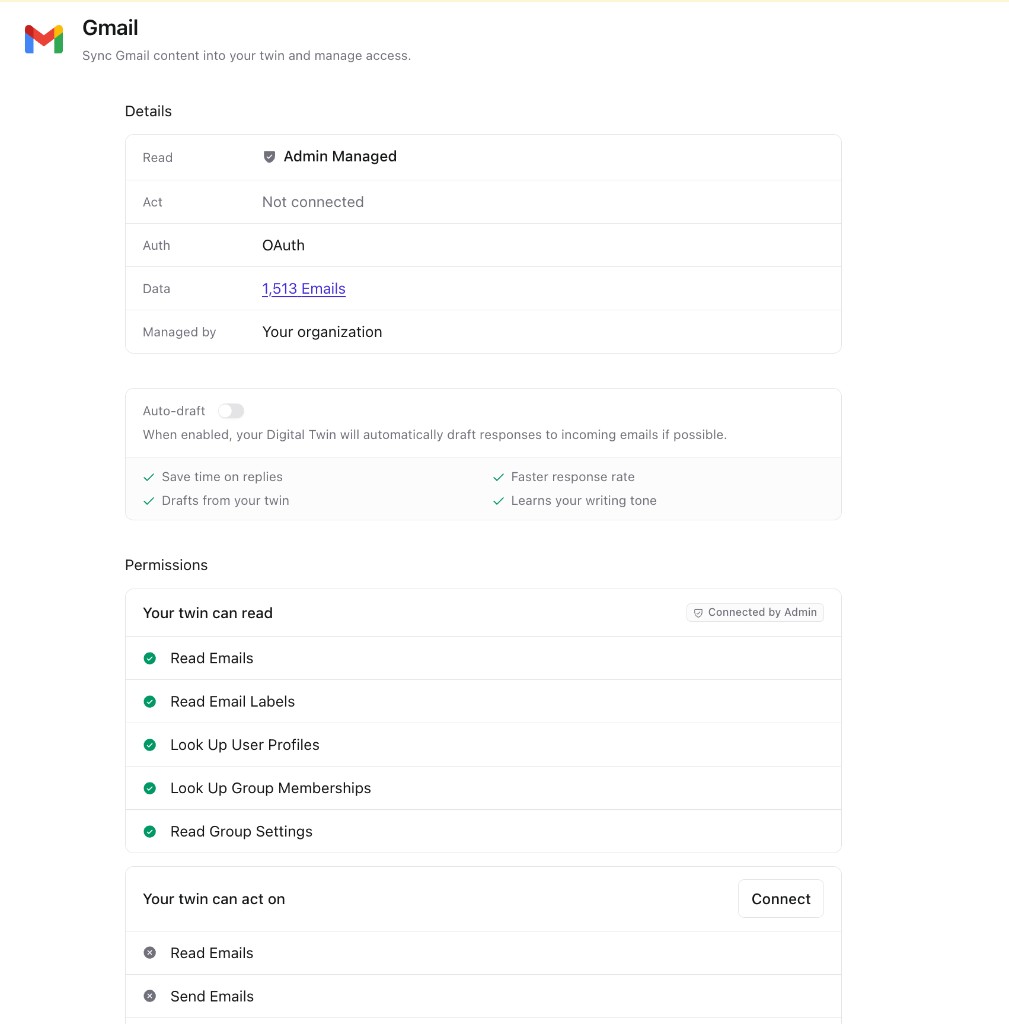
On the Apps page, sources that support actions show Read · Enable Act. Open an app to review Details (Read, Act, auth type, synced data volume, and who manages the connection) and a Permissions breakdown of what your Twin can read versus act on.
For many enterprise-managed sources, Read is Admin Managed — your organization connects sync on your behalf. Act may show Not connected until you authorize it yourself. Under Your twin can act on, select Connect and complete the OAuth flow to grant write permissions (for example, sending email). Read permissions you already have stay separate from act permissions you opt into.
Some apps also offer Auto-draft (for example, Gmail): when enabled, your Twin can stage reply drafts for your review — a lighter form of action that keeps you in control.
Examples of what Act unlocks once connected:
- Gmail — draft replies, send emails, search your inbox in real time
- Google Calendar — check your schedule, find free time, create or update events
- GitHub — comment on PRs, look up issues, take actions in your repos
- Slack — send messages, post updates to channels
Your Twin will always ask for confirmation before executing a write action — you'll see a preview of what it's about to do, and can edit or cancel before anything is sent or changed.
Actions use your personal credentials, not a shared service account — so anything your Twin does will appear as if you did it.
A Quick Mental Model
Think of every connected app as having up to two layers:
| Layer | What it does | Who sets it up |
|---|---|---|
| Knowledge (Read) | Syncs content into your Twin for search and recall | Admin for org sources; you for personal sources |
| Actions (Act) | Lets your Twin call tools and write back to the app | Admin enables the surface; you authorize your identity |
Most sources start as read-only. You choose when and whether to extend that into actions.
Tips
- You can disconnect any source you personally connected at any time from the Apps page.
- If a source you expect to see isn't listed, it may not be enabled for your organization — reach out to your admin.
- Some sources support both read and actions under the same connection — enabling Act doesn't require a separate re-authorization if you've already connected the source.
- If you see an Auto-draft toggle (like on Gmail), that's a shortcut that pre-stages reply drafts for your review — a lighter form of action that keeps you in control.