Cursor
Ask your Digital Twin for internal APIs, architecture decisions, and prior fixes without leaving your editor.
Connect
- Open My Twin → Data & Integrations → Apps and scroll to Use Twin in External Apps. See the overview for the full Apps page.
- Select Cursor and use 1-click Connect to install the integration.
Once connected, your Twin is available inside Cursor via MCP. Ask about the file you're editing, similar past incidents, or internal conventions and get answers grounded in your org's knowledge.
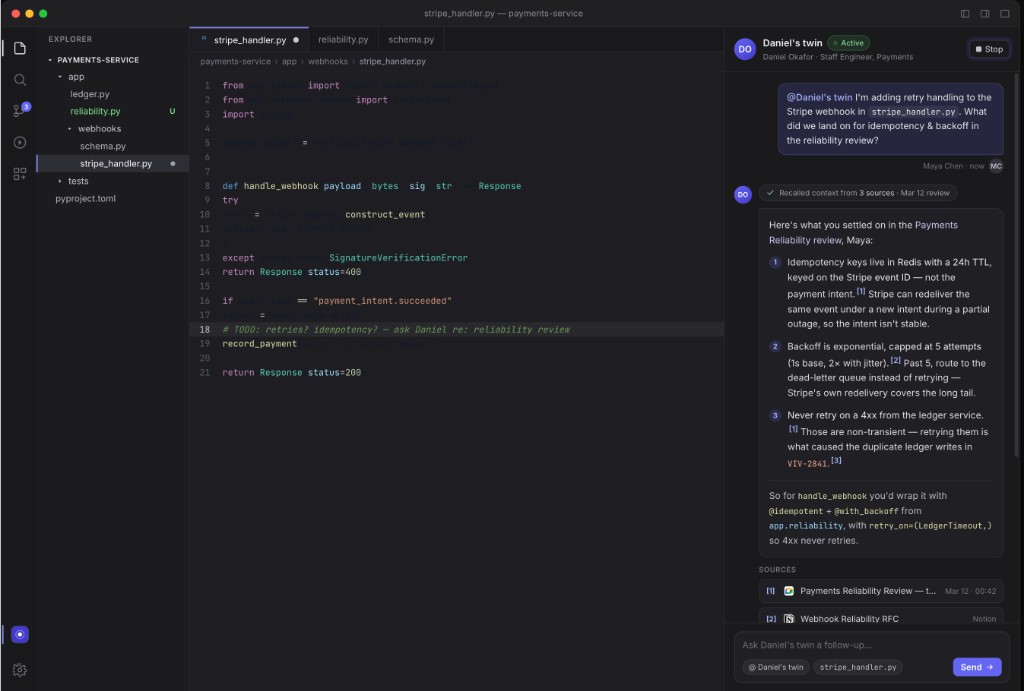
Example prompts
How have we handled similar authentication failures in the past?
What architecture decisions apply to this service? Summarize the relevant ADRs.
Draft a PR description based on the diff and our team's template.
Manual setup
If 1-click Connect isn't available in your environment, use the MCP Server flow instead: copy the MCP URL, create a Personal Access Token, and add the server in Cursor's MCP settings.
Bring your Digital Twin into Cursor — ask questions about your work, teammates, and org knowledge without leaving the editor.
Digital Twin connects to Cursor through the Model Context Protocol (MCP). One-click Connect requires the Cursor desktop app on Mac or Windows. Connect flows are disabled on mobile browsers — open Digital Twin on a desktop machine to set this up.
What This Does
Once connected, Cursor's agent can call your Digital Twin MCP server as a tool. Ask about action items from meetings, what a colleague decided on a project, or who knows about a topic — Cursor routes those queries to your Twin using the ask and search_twins tools.
Your Twin answers from the knowledge sources you have connected: Slack, email, meetings, documents, and more.
Before You Start
- Digital Twin Anywhere must be enabled for your organization. If you don't see Twin Settings → Use Digital Twin Anywhere, ask your admin to enable it.
- Install Cursor on your Mac or Windows machine.
- Open Twin Settings → Use Digital Twin Anywhere (or Twin Settings → Apps under Use Twin in External Apps).
Recommended: One-Click Connect
The fastest way to connect creates a Personal Access Token and opens Cursor with the MCP server pre-configured.
- In Digital Twin, go to Twin Settings → Use Digital Twin Anywhere (or find Cursor under Use Twin in External Apps in Twin Settings → Apps).
- Click 1-click Connect on the Cursor card.
- Digital Twin creates a scoped token and opens Cursor via a deeplink. Approve the install prompt in Cursor when it appears.
- Confirm Digital Twin shows up under Cursor's MCP servers (open Cursor Settings → MCP).
You're connected. Start a new agent chat and ask Cursor to query your Twin when needed.
Alternative: Manual Configuration
Use manual setup if one-click connect doesn't open Cursor, you need to customize the connection, or you're configuring a second machine.
- In Digital Twin, go to Twin Settings → Use Digital Twin Anywhere.
- Copy your MCP URL and create a Personal Access Token (PAT). Store the token somewhere safe — you won't be able to view it again after creation.
- Open your Cursor MCP config file:
- Mac / Linux:
~/.cursor/mcp.json - Windows:
%USERPROFILE%\.cursor\mcp.json
- Mac / Linux:
- Add the Digital Twin server to the
mcpServerssection. Replace<YOUR_MCP_URL>with your MCP URL and<YOUR-PAT>with your Personal Access Token:
{
  "mcpServers": {
    "Digital Twin": {
      "type": "sse",
      "url": "<YOUR_MCP_URL>",
      "headers": {
        "Authorization": "Bearer <YOUR-PAT>"
      }
    }
  }
}
- Restart Cursor completely, then confirm Digital Twin appears under Cursor Settings → MCP.
Using Your Twin in Cursor
With the MCP server enabled, ask Cursor naturally in agent mode — it decides when to call Digital Twin tools. Try prompts like:
What were my action items from last week's meetings?
Who on our team knows the most about our deployment process?
Summarize what we decided about the Q3 launch in Slack this month.
Cursor calls ask for knowledge queries and search_twins when it needs to find a colleague's twin or a topic expert. Responses include citations you can follow up on.
Some questions take longer than a minute to answer. The Digital Twin MCP server handles this automatically by polling in the background. Cursor may make several tool calls before the full answer arrives; this is expected behavior.
Troubleshooting
One-click Connect didn't open Cursor
Copy the MCP URL and PAT from Twin Settings and use the manual configuration above. Make sure Cursor is installed and you're on a desktop browser — mobile is not supported for connect flows.
Digital Twin doesn't appear in MCP settings
- Fully quit and reopen Cursor.
- Verify the JSON in
mcp.jsonis valid. - Confirm your PAT has not expired. Click Reconnect (or create a new token) from the Cursor card in Twin Settings.
The Ask tool returns an error
- Check that Digital Twin Anywhere is enabled for your org.
- Confirm the MCP URL and PAT in your config match what Twin Settings shows.
- Try 1-click Connect again to mint a fresh token.
Related
- Personal Access Token (PAT) — create, rotate, and revoke tokens used for MCP authentication.
- MCP Reference — tool descriptions, usage patterns, and known limitations for developers building on the MCP server.