Custom SMTP Setup
By default, Viven Digital Twin sends all outbound product emails through Viven's email infrastructure. Custom SMTP Setup lets organization admins route those emails through their own mail relay instead — ensuring that corporate email policies, security controls, and domain authentication rules apply to every email Digital Twin sends.
This setting is intended for IT administrators or system owners who manage enterprise email infrastructure. End users do not need to configure SMTP.
When to Use Custom SMTP
Configure a custom SMTP server when your organization requires one or more of the following:
- Corporate-controlled outbound email — All Digital Twin emails must leave through your organization's mail relay or security gateway (e.g., Proofpoint, Mimecast, Zscaler).
- DLP and recipient restrictions — Your mail gateway enforces policies such as blocking emails to personal addresses or external domains. Routing Digital Twin through your relay ensures these rules apply.
- Domain authentication compliance — Emails sent from a customer-branded sender address (e.g.,
notifications@yourcompany.com) must pass SPF, DKIM, and DMARC checks. Using your relay as the sending source ensures authentication passes. - Audit and logging — Your security team requires all outbound email to be logged through corporate mail infrastructure.
- Enterprise / BYOC deployments — Your environment requires IP allowlisting or private egress from specific network ranges.
Custom SMTP applies to all product-generated emails: Custom Twin invitations, access notifications, scheduled query outputs, agent workflow results, and token-renewal notifications.
Prerequisites
Before configuring custom SMTP, collect the following from your IT or email infrastructure team.
SMTP Endpoint
- SMTP hostname (e.g.,
smtp.yourcompany.com) - Port — typically
587with STARTTLS, or465with SSL/TLS
Authentication
- Authentication method: username/password (LOGIN or PLAIN) or IP-allowlist only
- SMTP username and password (if authenticated) — share credentials securely, not over email
TLS / Encryption
- Whether STARTTLS is required
- Supported TLS versions (TLS 1.2 or 1.3 recommended)
- If TLS inspection is in use (e.g., Zscaler), provide the CA certificate chain
Sender Identity
- Allowed From address(es) and display name
- Reply-To address (if different from From)
- DKIM/SPF/DMARC alignment requirements
Network / Firewall
- Whether Viven source IPs must be allowlisted on your SMTP relay
- Whether separate allowlist entries are needed for Dev, Staging, and Production
How to Configure
Custom SMTP is configured in the Admin Console. Only organization admins have access to this page.
Step 1 — Open SMTP Setup
In the Admin Console, navigate to Admin Console → SMTP Setup. You will see the SMTP Server Configuration panel.
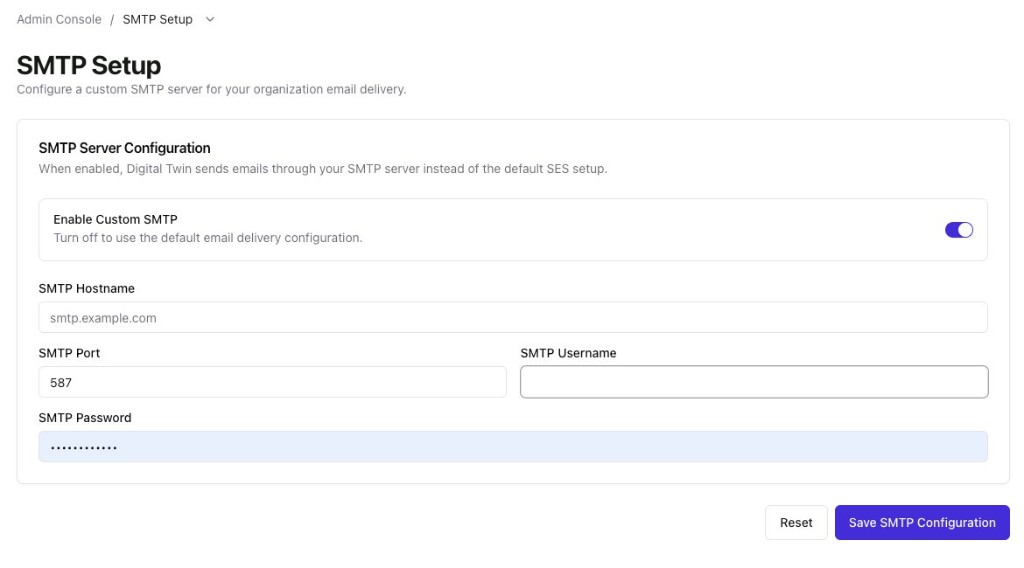
Figure 1 — Admin Console SMTP Setup (enable toggle, relay hostname, port, and credentials)
Step 2 — Enable Custom SMTP
Toggle Enable Custom SMTP to the on position. When enabled, Digital Twin will send all product emails through your configured SMTP server instead of the default infrastructure.
Turning this toggle off and saving reverts email delivery to Viven's default infrastructure. No emails will be lost — the switch takes effect for future sends only.
Step 3 — Enter SMTP Server Details
Fill in the following fields:
| Field | Description |
|---|---|
| SMTP Hostname | The hostname of your mail relay (e.g., smtp.yourcompany.com) |
| SMTP Port | The port your relay uses. Default is 587. |
| SMTP Username | Username for authenticating with your relay, if required |
| SMTP Password | Password for the SMTP account above, if required |
Step 4 — Save and Validate
Click Save SMTP Configuration. Resolve any validation or save errors before proceeding (see Troubleshooting below). Once saved successfully, all outbound product emails will route through your SMTP server.
Use the Reset button to discard unsaved changes and reload the last saved configuration from the server.
Troubleshooting
Connection timeout or relay unreachable
Your SMTP relay may not be reachable from Viven's infrastructure. Verify that Viven's source IPs or subnets are allowlisted on your relay. Contact your network team to confirm firewall rules.
Authentication error (530 5.7.0)
The relay requires authentication but the credentials are missing or incorrect. Re-enter the SMTP username and password in the Admin Console and save again.
Connection reset or TLS failure
There may be a TLS version mismatch or an issue with TLS inspection. Confirm the relay accepts TLS 1.2 or 1.3. If your organization uses TLS inspection, provide the CA certificate chain to your Viven contact.
Emails failing during Custom Twin invite flows
If adding users to a Custom Twin fails with an error, SMTP reachability is a likely cause — the product attempts to send an invitation email during user-addition flows. Verify SMTP connectivity is healthy before adding users.
Custom SMTP is customer-owned infrastructure. Viven can configure and validate the integration, but your team is responsible for keeping the relay reachable, authenticated, and allowlisted. If your relay becomes unreachable, email-dependent product flows will fail until connectivity is restored.
FAQ
Does custom SMTP affect login or SSO? No. Custom SMTP controls outbound email delivery only. Login, SSO, and device compliance are enforced through your IdP, independent of SMTP configuration. See Single Sign-On (SSO) →.
What happens if the SMTP server goes down? Email-dependent flows will fail while the relay is unreachable. You can disable custom SMTP temporarily from the Admin Console to fall back to Viven's default delivery while you resolve the issue.
Can I use an unauthenticated relay (IP allowlist only)? Yes. Leave the SMTP Username and Password fields blank. Ensure Viven's source IPs are added to your relay's allowlist before saving. Contact your Viven account team for the current list of source IPs.
Do Dev, Staging, and Production use different SMTP settings? Yes, if you have separate Viven environments. Each may use different source IPs and may require separate allowlist entries on your relay. Confirm with your network team and Viven contact.