Branding
Org admins can customize Digital Twin's visual identity — colors, contrast, and component styling — so the product matches your organization's brand. Changes apply org-wide for all users after you review and publish a branding draft.
Branding is available to Org Admins in Admin Console → Branding. Marketing or design teams often define the palette; an org admin applies and publishes it in the Admin Console.
Open Branding Configuration
Navigate to Admin Console → Branding. The page title is Branding Configuration — Customize your organization's visual identity.
The header includes:
- Theme toggle — Switch between light and dark mode while editing so you can validate both themes.
- Import — Paste a previously exported JSON branding configuration.
- Export — Copy the current draft to your clipboard (or download as JSON).
- Reset All — Discard all unsaved draft changes and restore the organization's saved theme.
Colors Tab
The Colors tab is where you adjust the design tokens that drive the product UI. Each card groups related CSS variables and shows an accessibility badge (for example, AAA or AA Large) for foreground/background pairs.
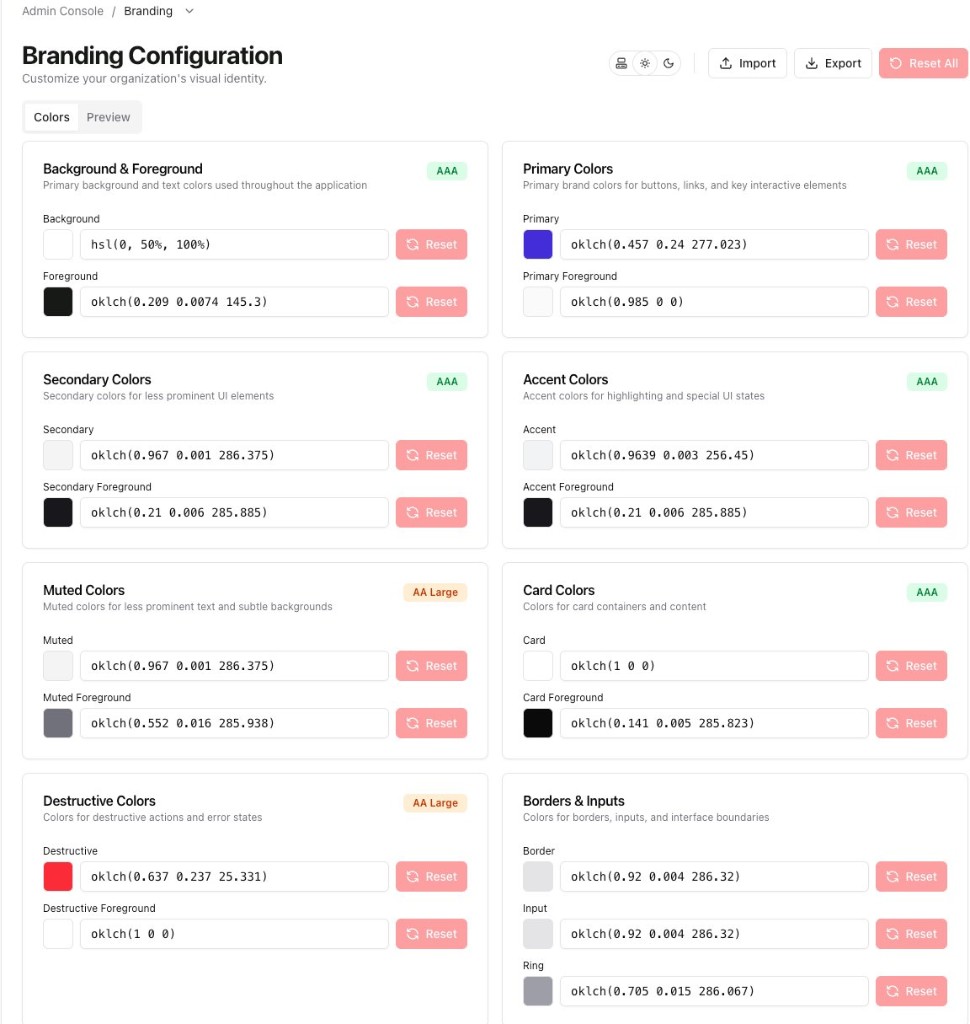
Figure 1 — Color groups with swatches, OKLCH/HSL values, per-field reset, and contrast ratings
Color groups
| Group | What it controls |
|---|---|
| Background & Foreground | Main app background and default text |
| Primary Colors | Buttons, links, and key interactive elements |
| Secondary Colors | Secondary buttons and less prominent surfaces |
| Accent Colors | Highlights and special UI states |
| Muted Colors | Subtle backgrounds and de-emphasized text |
| Card Colors | Card containers and content areas |
| Destructive Colors | Errors and destructive actions |
| Borders & Inputs | Borders, form fields, and focus rings |
For each token you can:
- Pick a color with the swatch control or enter a value directly (supports OKLCH, HSL, and other CSS color formats).
- Use Reset on an individual field to revert that token to the organization's saved value.
- Review the accessibility badge on the card — aim for AAA or AA ratings on text/background pairs users read frequently.
Use the theme toggle in the page header to edit light and dark palettes separately. Both themes should meet your brand and accessibility standards before publishing.
Preview Tab
Open the Preview tab to see sample buttons, cards, inputs, and alerts rendered with your current draft colors. Use this to sanity-check contrast and brand alignment before applying changes org-wide.
Review and publish
Edits on the Branding page start as a draft — they are not visible to other users until published.
When you change colors, a floating Branding Draft toolbar appears at the bottom of the screen:
- Draft / Original — Toggle between your draft theme and the currently published organization theme.
- Review changes — Open a summary of every color change (before → after).
- Publish — Apply the draft to your organization. All users will see the updated theme after publish.
- Preview in both light and dark mode
- Confirm primary buttons and body text meet accessibility targets
- Export a JSON backup before large changes so you can re-import if needed
Import and export
Export copies your current draft configuration as JSON — useful for backups, sharing with design teams, or copying branding between environments.
Import opens a dialog where you paste exported JSON to restore a configuration. Validate the result in Preview before publishing.
Reset All clears the entire draft and reloads values from the organization's last published theme. It does not undo a publish that has already been applied; contact your Viven representative if you need to roll back a published theme.
FAQ
Do branding changes affect the mobile app or email templates? Branding applies to the Digital Twin web application UI. Email templates and third-party surfaces may use separate styling.
Can I set a custom logo or company name? Logo and company name settings may be available depending on your deployment. If you do not see additional brand fields beyond colors, contact your Viven representative.
Who sees draft changes before I publish? Only admins editing the Branding page see the draft while the floating toolbar is active. Other users continue to see the published theme until you publish.