Single Sign-On (SSO)
Single Sign-On (SSO) lets users access Digital Twin with their corporate Identity Provider (IdP), so they do not need a separate Digital Twin password. Digital Twin uses SAML 2.0.
Org admins with Setup Admin (or equivalent) access can configure SSO in Admin Console → SSO Setup. Use the steps below to paste IdP metadata, confirm SP settings, save, and validate with a test user.
Benefits
- Seamless experience — Users sign in with existing corporate credentials
- Security — Authentication stays with your IdP
- Access control — Assign Digital Twin access through your IdP app and groups
- Reduced support — Fewer password reset requests
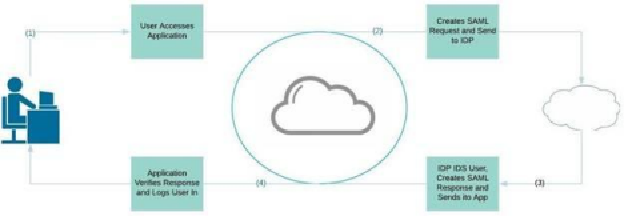
How It Works
- A user navigates to the Digital Twin application
- Digital Twin redirects them to your Identity Provider (IdP)
- The user authenticates via their existing corporate session (or logs in)
- The IdP returns a signed SAML response (including NameID and mapped user attributes)
- Digital Twin validates the IdP response and creates the user session
Before You Start
You will need:
- Admin Console access with permission to open SSO Setup
- IdP metadata XML from your SAML application (Okta, Entra ID, Google Workspace, etc.)
- Your organization's partition domain (for example,
acme.com) — used in ACS/SLO query parameters - A test user assigned to the IdP app who should be able to log in
If you are still deploying infrastructure, complete that stage first. BYOC customers typically configure SSO after the environment is reachable — see BYOC Deployment Process →.
Configure SSO in the Admin Console
Open Admin Console → SSO Setup. The page has three sections: IdP metadata, Service Provider (SP) settings, and optional password-login exceptions.
1. IdP Metadata XML
Paste the Identity Provider metadata XML from your SAML app. Digital Twin parses the IdP entity ID, SSO/SLO endpoints, and signing certificates from this file.
- In your IdP, create (or open) the SAML application for Digital Twin
- Download or copy the IdP metadata XML
- Paste it into the IdP Metadata XML field on the SSO Setup page
2. Service Provider (SP) Settings
The page pre-fills SP values from your Digital Twin host. Copy these into your IdP app, then confirm they match exactly on both sides.
| Field | Example value | Notes |
|---|---|---|
| SP Entity ID | https://digitaltwin.<customer-domain>/ | Include trailing slash if your IdP shows one |
| ACS URL | https://digitaltwin.<customer-domain>/sso_auth?acs=<partition> | Assertion Consumer Service endpoint |
| ACS Binding | urn:oasis:names:tc:SAML:2.0:bindings:HTTP-POST | Default on the SSO Setup page |
| SP Single Logout URL | https://digitaltwin.<customer-domain>/sso_auth?sls=<partition> | Single logout endpoint |
| SP Single Logout Binding | urn:oasis:names:tc:SAML:2.0:bindings:HTTP-Redirect | Default on the SSO Setup page |
| SP NameID Format | urn:oasis:names:tc:SAML:1.1:nameid-format:emailAddress | Default; must match IdP NameID mapping |
| SP Private Key | (optional) | Only if your IdP requires signed Authn requests |
| SP x509 Certificate | (optional) | Pair with SP Private Key when signing is required |
Replace <customer-domain> with your Digital Twin hostname (for example, acme.com → https://digitaltwin.acme.com). Replace <partition> with your organization partition identifier — in most deployments this is your root email domain (for example, acme.com).
If you see invalid audience or invalid response errors, verify SP Entity ID and ACS URL are character-for-character matches in your IdP (including https, trailing slashes, and query parameters).
3. Allow Password Logins
When SSO is enabled, password login is disabled for most users. Use this field for approved break-glass accounts only — one email or domain per line (for example, it-admin@acme.com or breakglass.acme.com).
Remove default placeholder entries that do not apply to your organization before saving.
4. Save
Click Save SSO Configuration. A success toast confirms the settings were stored. If save fails, check that metadata XML is valid and required SP fields are populated.
Configure Your IdP Application
On the IdP side, map SAML attributes so Digital Twin can provision user profiles:
- NameID — user email address (must match the format selected in SP NameID Format)
- First and last name — attribute statements for given name and surname (required for Microsoft Entra ID / ADFS claim URIs)
- App assignment — assign the user group(s) that should access Digital Twin during pilot or rollout
Digital Twin supports any SAML 2.0-compliant IdP, including:
- Okta
- Microsoft Entra ID / ADFS
- Google Workspace
- Micro Focus NetIQ
- OneLogin
Validation Checklist
After saving SSO configuration:
- Open a private/incognito browser window
- Navigate to your Digital Twin URL (
https://digitaltwin.<customer-domain>) - Confirm redirect to your IdP
- Sign in with a test user assigned to the IdP app
- Confirm successful login into Digital Twin
If login fails, re-check:
- SP Entity ID and ACS URL exact match in the IdP
- NameID format and email mapping
- Valid (non-expired) IdP metadata certificate
- Test user is assigned to the IdP application
After SSO Is Working
- Provision users — Add employees manually, via CSV import, or SCIM. See Employees →.
- Connect data sources — Continue onboarding with Integrations after SSO is validated.
- Pilot access — Scope the pilot cohort using your IdP group assignment; update the group before go-live.
Getting help from Viven
Many teams configure SSO entirely in the Admin Console. If your setup is more involved, your Viven contact can help with:
- Custom domain or partition setup before SSO fields are available
- IdP-specific signing requirements (SP private key / certificate generation)
- Multi-domain or complex federation topologies